
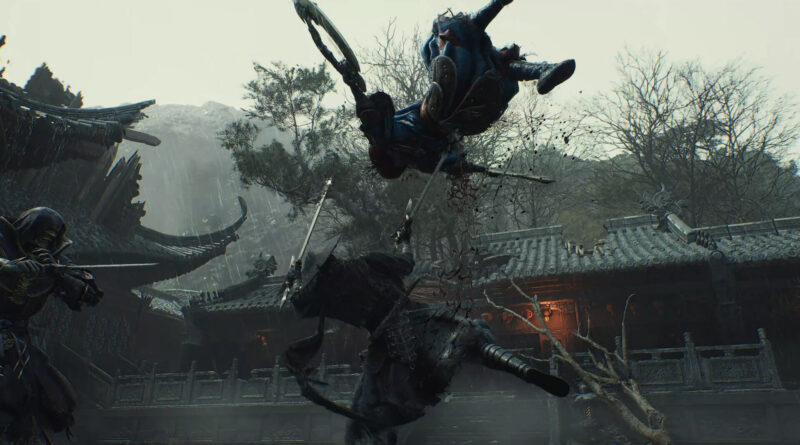
Phantom Blade Zero Crashing? How to Fix Crashes, Launch Errors and Corrupted Saves After Patch 1.0302256
Phantom Blade Zero has been one of the biggest launches on Steam since October 28, 2026, with hundreds of thousands of players online at the same time. Not all of them are slicing through enemies, though. If Phantom Blade Zero is crashing, freezing on a black screen, refusing to launch or telling you that your device is not supported, you are not alone. This guide collects every fix that developer S-GAME has officially confirmed on its support page and in the patch notes for update 1.0302256, from clearing the shader cache to restoring a corrupted save file.
Phantom Blade Zero Crashing After the Update? Clear the Shader Cache First
Patch 1.0302256, released on November 4, 2026, changed how the PC version compiles shaders to cut startup times. Ray tracing shaders are no longer compiled at startup by default. If you had Ray Tracing turned off, the game has to recompile shaders once on the first launch after the patch. If you turn Ray Tracing on later, those shaders are compiled separately the next time you restart the game. That one-time wait is normal and not a freeze.
If the game crashes or stutters after updating, S-GAME’s official advice is to delete the shader cache so it can be rebuilt:
- Right-click Phantom Blade Zero in your Steam Library.
- Select Manage, then Browse local files.
- Open the folder
PBZ\ProjectPBZ\Saved\Cacheand delete the files inside it. - Launch the game again and let the shaders recompile.
Two more tips from the official FAQ: let shader compilation finish before you enter the game, and keep the game window in the foreground while it runs. If you tab out, Windows lowers the CPU priority and compilation takes longer. S-GAME also warns that some third-party mods are not compatible with the update, so remove any installed mods if problems started right after patching.
Crashes, Black Screens and Freezes: The Official Checklist
For general crashes, black screens or freezes, S-GAME recommends working through these steps in order:
- Check the system requirements: Phantom Blade Zero must be installed on an SSD. The developer also advises against the system drive (C:) if possible, so Windows read and write activity doesn’t hurt frame rate stability. You can check your drive type in Task Manager (Ctrl+Shift+Esc) under Performance.
- Restart everything: Restart your PC and Steam, and close background programs you don’t need.
- Update drivers and Windows: Check for graphics driver and Windows updates.
- Disable third-party tools: Turn off overlays, plugins and other tools first to rule out compatibility problems.
- Verify your game files: In Steam, right-click the game, then go to Properties, Installed Files and Verify integrity of game files. Restart the game afterwards.
A note for NVIDIA users: At launch, S-GAME named driver 617.42 as the most ideal driver version for Phantom Blade Zero and suggested reinstalling it with a clean installation if you had already updated to a newer driver. As of this writing, the official support page still lists that recommendation. We covered the driver situation and the best graphics settings in detail in our Phantom Blade Zero PC settings guide.
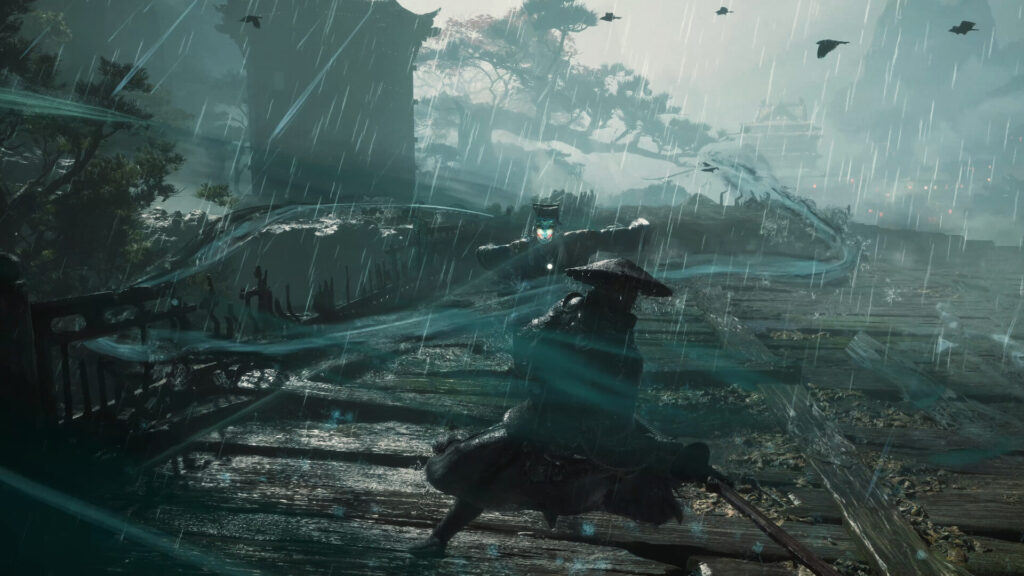
Before you blame the game, make sure it sits on an SSD and your drivers are in order.
Phantom Blade Zero Not Launching? Fix “This Device Is Not Supported”
This error confuses a lot of players because their PC says it supports DirectX 12. According to S-GAME, the game checks for several specific DirectX 12 capabilities at launch, including Feature Level 12_0, Shader Model 6.6, Resource Binding Tier 2, WaveOps and 64-bit atomic operations. “DirectX 12 supported” in Windows doesn’t guarantee all of them, and a failed device creation or driver problem can trigger the same message. The official fixes are:
- Remove custom launch options: If you manually added parameters such as -graphicsadapter, -ForceDisableSM6 or -gpupreference, remove them. Keep the launch options the platform set automatically.
- Pick the right GPU on laptops and multi-GPU PCs: Go to Windows Settings, System, Display, Graphics, add the game’s executable and set it to High performance so the dedicated graphics card is used.
- Install the correct driver: Use the official driver for your GPU and Windows version. On branded laptops, S-GAME recommends the driver from the laptop manufacturer first. Restart your PC afterwards.
- Update Windows: Install pending system updates and restart.
Keep in mind that lowering graphics settings won’t help here. If your GPU really lacks one of the required features, the game won’t run on it. If your system meets the requirements and the message still appears, S-GAME says the check may have produced a false positive and asks you to contact official support.
Missing Visual C++ Runtime Error at Launch
If Phantom Blade Zero asks for the Microsoft Visual C++ 2015-2022 Redistributable (x64), the runtime is missing, outdated or corrupted. Download vc_redist.x64.exe and vc_redist.x86.exe from Microsoft, close the game and Steam, then run the x64 installer first and the x86 installer afterwards, one at a time. If an installer offers Repair, choose it. Restart your PC once both are done, then launch the game again. The x64 package is the one the game requires. The x86 package is optional and only helps other 32-bit programs, so it can’t replace x64.
How to Restore a Corrupted Save File on Steam
Losing progress is the worst kind of bug. Luckily, the game keeps automatic backups, and S-GAME has published the official way to restore them. Make a copy of the whole save folder somewhere safe before you start, just in case.
- In your Steam Library, right-click Phantom Blade Zero and select Manage, then Browse local files.
- Go to
PBZ\ProjectPBZ\Saved\SaveGames\Steam\[your Steam ID]\and delete the corrupted file namedPBZSaveGame.sav. - Open the subfolder
1RealTimein the same directory. It contains backup .sav files. Choose one that was created before the save became corrupted. - Copy that backup into the folder from step 2 and rename it to
PBZSaveGame.sav. - Launch the game, select Load Game and load the restored save.
- Once everything works, find a bell and save your progress. Then close the game and wait until Steam has finished uploading your save to Steam Cloud, so the old corrupted file doesn’t sync back.
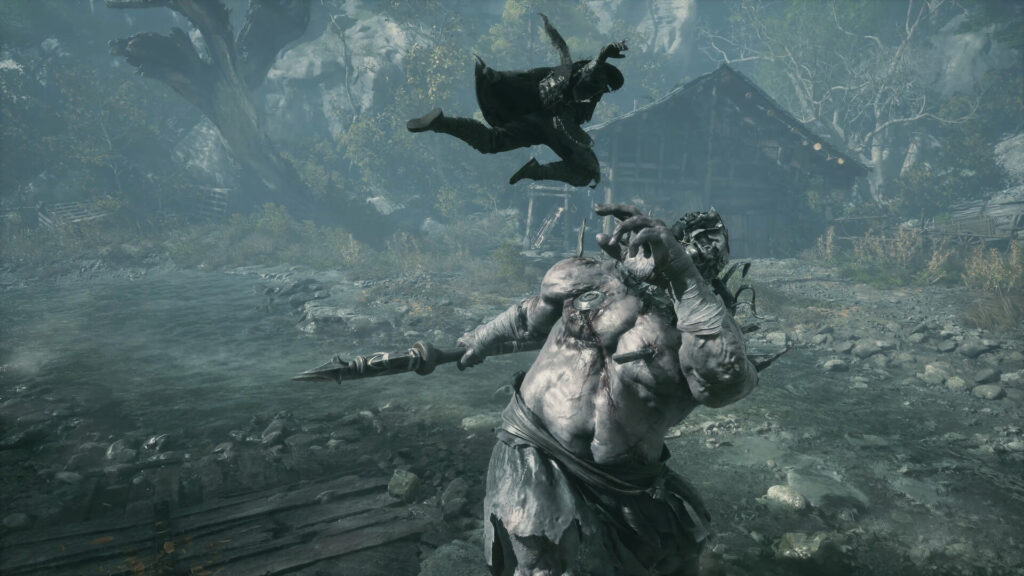
Save at a bell after restoring a backup, so Steam Cloud keeps the working file.
Other Common PC Problems and Fixes
- Stuttering with a Bluetooth controller: Patch 1.0302256 reduced stuttering with controllers connected via Bluetooth. S-GAME still recommends a USB cable that supports data transfer for the best experience, especially since some advanced DualSense haptics are limited over Bluetooth.
- No DualSense haptics: Check whether the controller’s audio device has been disabled in the Windows sound settings. Haptic feedback depends on it. If you don’t want sound from the controller, just set another device as default output instead of disabling it.
- HDR option greyed out: Enable HDR for your monitor in Windows under Settings, System, Display. On AMD cards, turn off “10-bit Pixel Format” in AMD Software: Adrenalin Edition (not the same as your monitor’s color depth setting) and restart the game.
- Broken hair on AMD cards: Incorrect hair rendering on certain AMD graphics cards with specific driver versions was fixed in patch 1.0302256.
- NVIDIA Reflex not working: Since the same patch, Reflex works when set to “Auto” with V-Sync enabled.
- Small patch, huge space requirement: During an update, Steam temporarily stores and rebuilds files, so you need more free space than the patch size itself. The game is around 150 GB, and S-GAME recommends keeping at least 160 GB free for installation.
Still Crashing? How to Contact S-GAME Support
If none of these fixes help, you can report the problem on the official Phantom Blade Zero support page. S-GAME asks for a description of when the issue happens (startup, loading or a specific scene), screenshots or a video of any error, your Windows version, CPU, GPU and RAM, your graphics driver version and your game version. A DxDiag report helps too: press Win+R, type dxdiag, save the report and attach it.
Our Verdict
Most cases of Phantom Blade Zero crashing come down to a few causes: an outdated shader cache after the latest patch, incompatible mods, driver trouble, or a game installed on the wrong drive. Clear the cache, verify your files and check your drivers before anything else, and remember that the game keeps save backups if the worst happens. This guide reflects Phantom Blade Zero patch 1.0302256 and the official S-GAME support FAQ as of November 8, 2026, and fixes may change with future updates.
Keep the adventure going! Check out more Gaming Guides on Gamersuniverse.
Picture Source: S-GAME



My specific machine encountered a different issue where the game would freeze immediately upon startup. This happened even after completely removing the cache files.