The Best Phantom Blade Zero Settings for PC: Graphics, DLSS, Path Tracing and the Right NVIDIA Driver
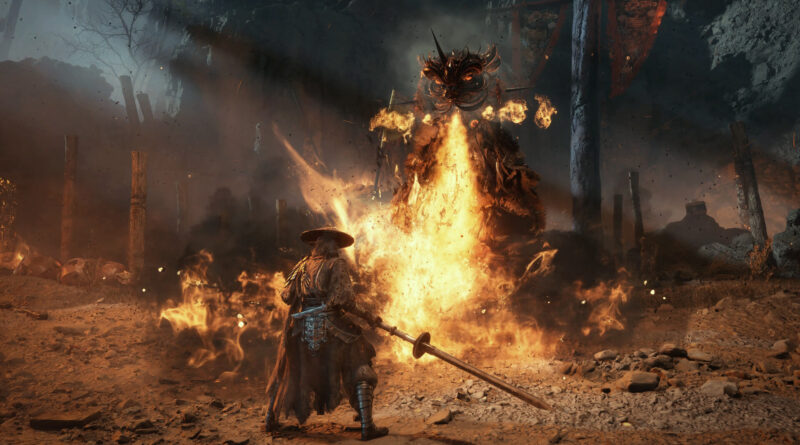
Phantom Blade Zero is finally out, and S-GAME’s kungfupunk action RPG went straight to No. 2 on Steam’s most played chart with more than 360,000 concurrent players within hours of launch. It’s also an Unreal Engine 5 game with five presets, four upscalers, frame generation and a full path tracing mode, plus a day-one driver warning from the developer. This guide covers the best Phantom Blade Zero settings on PC, so you get smooth, responsive combat without giving up the game’s gorgeous rain, fire and lighting. It reflects the launch version of the game with the day-one patch.
Phantom Blade Zero PC Requirements: Check These First
Before you open the graphics menu, make sure your PC meets the official requirements. Both targets assume that upscaling is switched on, and an SSD is mandatory:
- Minimum (1080p, 30fps with upscaling): Intel Core i7-8700K or AMD Ryzen 5 3600, 16GB RAM, GeForce GTX 1660 6GB or Radeon RX 5500 XT 8GB, Windows 10 or 11 (64-bit), DirectX 12.
- Recommended (1440p, 60fps with upscaling): Intel Core i5-10600K or AMD Ryzen 5 5600X, 16GB RAM, GeForce RTX 3060 Ti 8GB or Radeon RX 6700 XT 12GB.
- Storage: the game takes up around 145GB, and S-GAME asked players to reserve at least 300GB of free space for the pre-load process. Install it on an SSD, ideally your fastest one.
Install the Day-One Patch and Use NVIDIA Driver 617.42
This is the single most important tip in this guide. In a letter to players posted on Steam shortly before launch, S-GAME CEO and Creative Director Soulframe Liang shared two key technical notes:
- Day-one patch: an update of roughly 5GB significantly improves ray tracing and path tracing performance and fixes several bugs. If you pre-loaded the game, download and install it before your first launch. Fresh downloads already include it.
- NVIDIA driver: the studio observed performance instability with NVIDIA’s latest 621.01 driver and recommends rolling back to version 617.42 with a clean installation. S-GAME suggests staying on 617.42 until NVIDIA releases its next driver, which the studio expects soon.
That’s a little awkward, because 621.01 is the very driver NVIDIA labelled Game Ready for Phantom Blade Zero, the same release that also added Advanced Shader Delivery, which we covered in our NVIDIA GeForce driver article. Still, the developer knows its game best. If you see crashes, stutter or uneven frame pacing on a GeForce card, download 617.42 from NVIDIA’s driver archive and pick the clean installation option during setup. Once NVIDIA ships a newer driver, check S-GAME’s Steam news before you update again.
Pick the Right Upscaler and Frame Generation
Phantom Blade Zero supports Unreal Engine’s own TSR, NVIDIA DLSS, AMD FSR and Intel XeSS, with modes from Ultra Performance up to Ultra Quality, plus native anti-aliasing modes (DLAA, FSR AA and XeSS AA). Since even the official requirements assume upscaling, choosing the right one matters more than any single slider:
- GeForce RTX: use DLSS and start with Quality. On a strong card at 1080p or 1440p, DLAA gives you the cleanest image.
- Radeon: use FSR, again starting with Quality.
- Intel Arc: use XeSS.
- Everything else: TSR works on any graphics card and is the safe fallback, for example on a GTX 1660.
Frame Generation depends on your graphics card brand: AMD cards get up to 2x, Intel up to 4x and GeForce RTX 50 Series cards up to 6x with NVIDIA’s Multi Frame Generation, and the game only shows the options that match your hardware. Phantom Blade Zero is all about split-second deflects and dodges, so only switch frame generation on once you already reach a stable 60fps without it. It smooths motion, but it can’t fix a low base frame rate and it adds some input latency. In independent testing, Motion Blur also caused visible artifacts with frame generation during fast movement, so turn Motion Blur off if you use it.
Leave Dynamic Resolution Quality off unless you specifically want a locked 30 or 60fps target. It’s limited to those two targets and can’t be used together with path tracing, so a fixed upscaler mode is the better choice for most players.
Which Preset Should You Use?
The game offers five presets, Low, Medium, High, Very High and Ultra, and automatically suggests one based on your hardware. That recommendation is a decent starting point, but manual tuning pays off here. In an independent test on an RTX 4090 at 1440p, a hand-tuned mix of settings raised the average frame rate from 74fps on Ultra to 103fps, roughly 39 percent more, with only small visual differences. If you don’t want to tinker, High or Very High plus your upscaler on Quality is the best balance for most systems.
The Best Phantom Blade Zero Graphics Settings
Start from the Ultra or Very High preset, then change the following options. These are our recommended starting values, based on independent benchmark results, for a smooth experience without ray tracing:
- High-Quality Hair: Off. This is the biggest single win, costing around 19 percent performance in testing, and despite its description it also applies during gameplay, not just in cutscenes.
- Environment Detail Quality: Medium.
- Lighting, Effects and Material Quality: High.
- Shadow Quality: Very High.
- Reflection and Ambient Occlusion Quality: Ultra.
- View Distance: High.
- Character Texture and Character Model Quality: Ultra.
- Environment Texture Quality: Ultra if your graphics card has at least 8GB of VRAM and you play at 1440p without ray tracing. Drop it a step on 6GB cards.
- Environment Model Quality: Ultra.
- Anti-Aliasing Quality: Medium. This only affects TSR, so it doesn’t matter when you use DLSS, FSR or XeSS.
- Motion Blur and Depth of Field: personal preference. Turn Motion Blur off or keep its intensity low for clearer combat, and always off with frame generation.
- Film Grain Intensity: 0 for a sharper image.
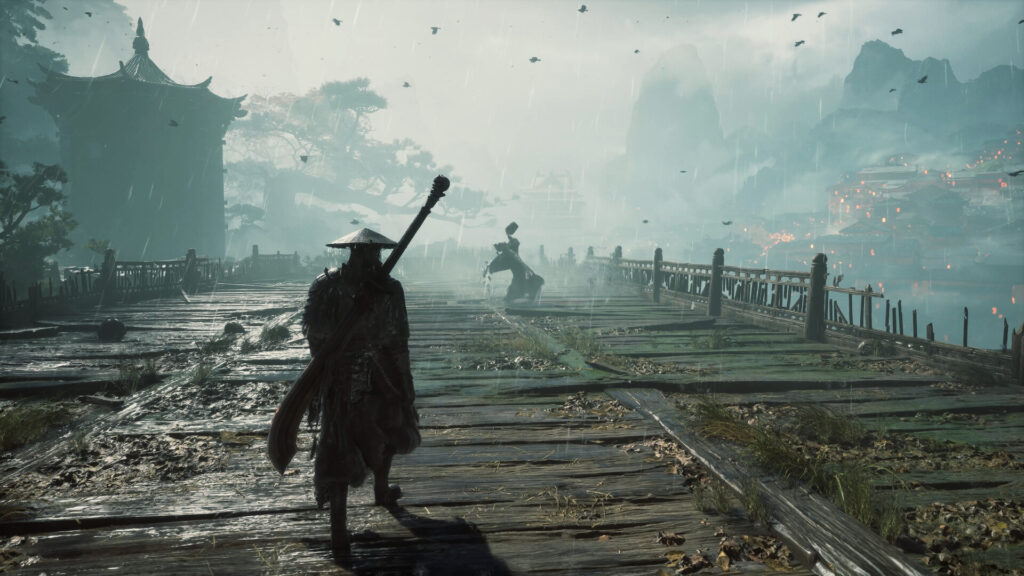
Misty vistas like this one are where View Distance and Environment Texture Quality make the biggest visual difference.
Ray Tracing vs Path Tracing: Is It Worth It?
The lighting mode lets you choose between Native Rendering, Ray Tracing and Path Tracing, and path tracing is off by default. Here’s what you need to know before switching it on:
- Performance cost: in benchmarks on an RTX 5090 at 4K, ray tracing cost around 22 percent compared to native Ultra, while path tracing cut the frame rate roughly in half. These tests were run before the day-one patch, which S-GAME says significantly improves both modes, so real-world numbers should be somewhat better.
- GeForce RTX only: path tracing relies on DLSS Ray Reconstruction, so in practice it’s limited to NVIDIA RTX cards. Radeon and Arc owners can still use regular ray tracing.
- VRAM: ray tracing added around 1.5GB of video memory use in testing, path tracing nearly 3GB. Plan on 10 to 12GB of VRAM or more for either mode.
- Main menu only: according to one hands-on test, you can only switch between ray tracing and path tracing from the main menu, not mid-game, so decide before you load your save.
Our recommendation: path tracing is a showpiece for RTX 4090, RTX 5080 and RTX 5090 owners who are happy to combine it with DLSS and frame generation. On mid-range cards, regular ray tracing or Native Rendering with higher base settings is the better deal, because a steady frame rate matters far more in Phantom Blade Zero’s fast duels than more accurate reflections.
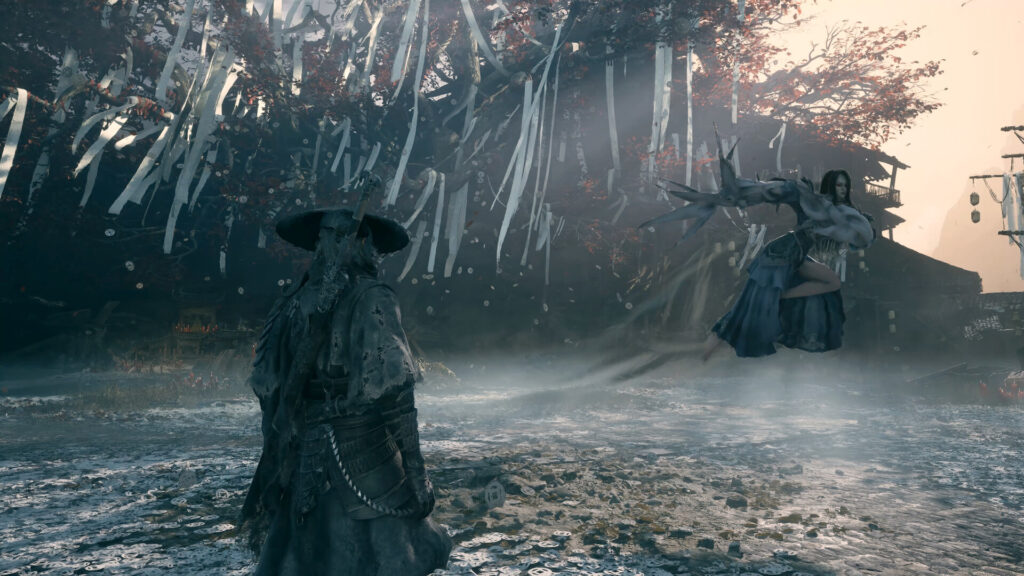
Rain-soaked duels look stunning with ray tracing, but in fast fights a stable frame rate is worth more than extra reflections.
How to Avoid Stutter in Phantom Blade Zero
On first launch, Phantom Blade Zero compiles its shaders before you can start playing. On a high-end Intel Core i7-14700K this took around eight minutes in testing, so expect longer on older processors. Let it finish completely: it removes the vast majority of shader compilation stutter, and independent tests describe the game as one of the smoother Unreal Engine 5 releases afterwards. A few traversal hitches can still appear, especially with ray tracing or path tracing enabled.
If your frame rate jumps around between areas, set a frame rate limit in the Display settings slightly below your average, for example 60 or your monitor’s refresh rate. On a G-Sync or FreeSync display, leave V-Sync off. And if stutter or frame pacing issues persist on a GeForce card, the driver rollback to 617.42 described above is the first thing to try.
Other Settings Worth Changing
- Camera Shake: the default value is 80. Lower it if the screen feels too busy during heavy hits and executions.
- Sharpness: adjust to taste, a little sharpening helps with DLSS or FSR in Performance mode.
- HDR: use the Image Calibration screen and set HDR Peak Brightness to your display’s real peak value, then adjust Mid and UI Brightness until the test images look right.
- Ultrawide and handhelds: S-GAME says the game supports 16:9, 16:10 laptop and handheld screens, and ultrawide aspect ratios beyond 3:1.
- Controls and audio: PC offers flexible key remapping, although the Steam page recommends a gamepad. The audio menu even lets you adjust the tone of clashing blades, so it’s worth a quick look before your first boss.
Our Quick Verdict: The Best Phantom Blade Zero Settings
For most PC players, the best Phantom Blade Zero settings are the Very High or Ultra preset with High-Quality Hair off, Environment Detail on Medium, your vendor’s upscaler on Quality and Motion Blur and Film Grain off. Turn on frame generation only once you already hit 60fps, and save path tracing for high-end GeForce RTX cards. Above all, install the day-one patch, let the shaders compile fully and, on NVIDIA hardware, follow S-GAME’s advice to use driver 617.42 for now. The studio is still patching the game and a new NVIDIA driver is on the way, so some of these recommendations may shift with future updates. Looking for more tuning tips for other big releases? Check out our best Gears of War: E-Day settings and best Modern Warfare 4 settings guides.
Keep the adventure going! Check out more Gaming Guides on Gamersuniverse.
Picture Source: S-GAME