The Best Gears of War: E-Day Settings for PC, Xbox Series X and Series S
Gears of War: E-Day has been out for just over a week, and between mandatory hardware ray tracing, four different upscalers, frame generation and a preset called Ludicrous, its settings menu is easy to get wrong. Pick the wrong preset and even a strong graphics card drops below 60fps, choose the wrong mode on Xbox and Kalona suddenly feels sluggish. This guide covers the best Gears of War E-Day settings on PC, Xbox Series X and Xbox Series S, so you get the smoothest and cleanest experience in the campaign, Horde Siege and Versus. It reflects the game as of the October 14 patch.
Gears of War E-Day PC Requirements: Ray Tracing Is Mandatory
Before you touch a single slider, make sure your PC can run the game at all. E-Day requires a graphics card with hardware ray tracing support, so older cards without it aren’t supported, no matter how fast they are otherwise. An SSD with 115GB of free space is mandatory as well. The Coalition’s official targets look like this:
- Minimum (1080p, 60fps, Medium): GeForce RTX 2060 or RTX 5050, Radeon RX 6600 or RX 9060, Ryzen 5 2600X or Core i5-10400, 12GB RAM.
- Recommended (1440p, 60fps or more, High): GeForce RTX 3060 Ti or RTX 5060, Radeon RX 6700 XT or RX 9060 XT, Ryzen 5 5600 or Core i5-11600K, 16GB RAM.
- Ultra (4K, 60fps or more, Ultra): GeForce RTX 5070 Ti or Radeon RX 7900 XT, Ryzen 7 7800X3D or Core i7-14700K, 16GB RAM.
Keep in mind that these targets assume an upscaler is switched on. Independent benchmarks show that native 4K at Ultra is out of reach for almost every graphics card on the market, so upscaling isn’t optional here, it’s part of the plan. You can find the full breakdown in our Gears of War: E-Day PC specs article.
Pick the Right Upscaler First
The most important choice in the menu is your upscaler. E-Day supports NVIDIA DLSS 4.5, AMD FSR 4, Intel XeSS and Unreal Engine’s own TSR, each with Native (the DLAA, FSRAA, XeSSAA or TSRAA anti-aliasing option), Quality, Balanced, Performance and Ultra Performance modes:
- GeForce RTX: use DLSS. Quality at 1080p, Quality or Balanced at 1440p and Performance at 4K is the sweet spot. Avoid going more aggressive than Quality at 1080p, the ray tracing noise already becomes visible there.
- Radeon RX 9000 and RX 7000: use FSR 4 with the same mode logic.
- Radeon RX 6000: these cards only get an older FSR version that shimmers and flickers on high-contrast edges. Try XeSS or TSR instead and keep whichever looks cleaner to you.
- Intel Arc: use XeSS.
Frame Generation is tied to your hardware: DLSS Multi Frame Generation on GeForce RTX, FSR Frame Generation on AMD and XeSS Frame Generation on Intel Arc. On Radeon cards older than the RX 9000 series, the FSR option may simply be greyed out. Only switch frame generation on once you already reach a stable 60fps without it, since it smooths motion but can’t fix a low base frame rate and adds some input latency. For Versus, most players are better off leaving it off and keeping NVIDIA Reflex or AMD Anti-Lag enabled instead.
Which Preset Should You Use? Skip Ludicrous
E-Day offers five presets: Low, Medium, High, Ultra and Ludicrous. Here’s how to approach them:
- Ludicrous: treat it as a screenshot mode. In independent testing it cuts performance roughly in half compared to Ultra, which is hard to justify in the middle of a firefight.
- Ultra or High: the best choice for most players, combined with an upscaler on Quality or Balanced.
- Medium: the lowest preset we’d recommend. On an RTX 3060 class card at 1080p, Medium with DLSS Quality is the combination that holds an average of around 60fps.
- Low: avoid it if you can. It crushes shadows and drops ambient occlusion, and the image looks noticeably flatter for a modest frame rate gain.
RTX Mega Geometry is a separate toggle exclusive to GeForce RTX cards, and the game only allows it on cards with at least 12GB of VRAM. It costs roughly 10 percent performance for a subtle boost in detail that’s most visible in dense scenes. Turn it on if you have frames to spare, and off if you’re chasing a higher frame rate.
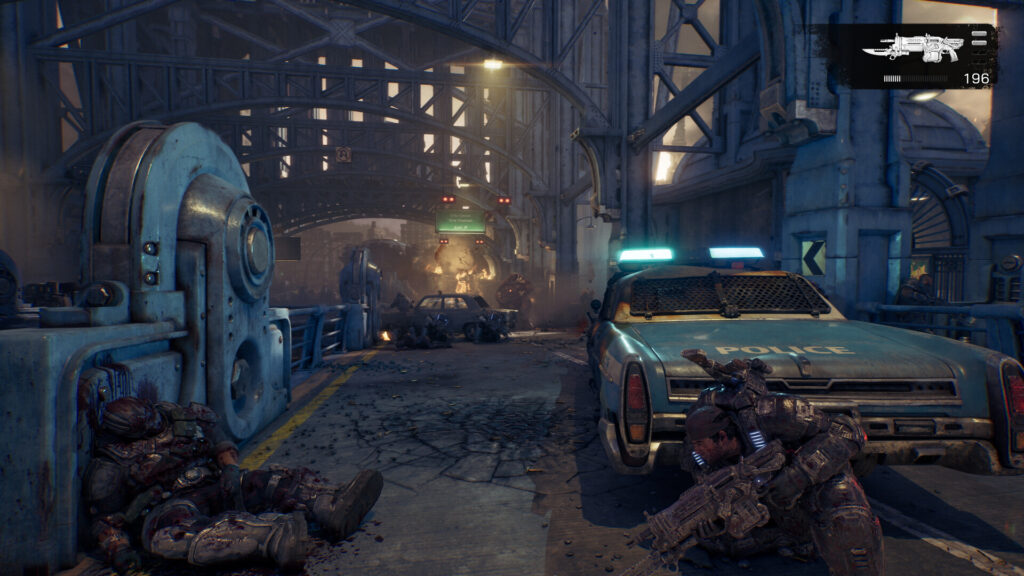
Kalona’s dark, industrial streets are where E-Day’s ray-traced lighting and shadows make the biggest difference.
The Best Gears of War E-Day Graphics Settings for High FPS
If you’d rather fine-tune than rely on a preset, start from High or Ultra and adjust these options:
- Max FPS: the limiter offers 30, 60, 90, 120, 144, 240 and Unlimited. Set it to your monitor’s refresh rate or the next step below it for steadier frame pacing. On a G-Sync or FreeSync display, leave VSync off.
- Target FPS: a separate 30, 60 or 90fps target. Pick the one your hardware can realistically hold, usually 60 for the campaign.
- Field of View: the slider ranges from 60 to 90 degrees. Widen it if the over-the-shoulder camera feels cramped, especially in Versus, at a small performance cost.
- Reflections and Ray Tracing Geometry: keep these as high as your card allows. E-Day doesn’t support DLSS Ray Reconstruction and relies on its own denoiser, which can make ray-traced shadows and reflections look unstable, and in hands-on testing the higher values made that shimmering much less noticeable.
- Hair Strands: turn this off first if your frame rate needs a quick boost.
- Motion Blur, Chromatic Aberration and Film Grain: off for a cleaner, sharper image.
- Eco Mode: off on desktop PCs. The Coalition designed it to cut power consumption and heat by lowering quality, which makes sense on handheld PCs but not on a desktop.
- Cinematic Ultrawide Support: on 21:9 and 32:9 monitors, enable it to remove the letterboxing in cutscenes. Gameplay already supports ultrawide either way.
One important warning: E-Day uses Easy Anti-Cheat, so third-party tools that inject frame generation or upscalers into the game risk a ban. Stick to the options in the official menu.
How to Avoid Shader Stutter on PC
E-Day is the first game to support Microsoft’s Advanced Shader Delivery across a wide range of Windows PCs. The feature downloads precompiled shaders together with the game. According to Microsoft, it cuts shader compilation time by roughly 95 percent and removes stutter on first launch. At launch, it works through the Xbox PC app on Windows 11 24H2 or newer with AMD Radeon graphics cards on Adrenalin 26.6.1 or newer, as well as Snapdragon X2 devices. Microsoft has announced support for all GeForce RTX and select Intel Arc cards for later in October. If it’s working, the launch screen tells you that precompiled shaders are installed. If you play on Steam or your GPU isn’t supported yet, give the game a moment to compile shaders on first boot and expect some hitches during the opening hours, which independent tests have noticed more often on NVIDIA cards at 1080p.
Best Settings on Xbox Series X and Xbox Series S
On console, E-Day lets you pick a separate graphics mode for the Campaign, Horde Siege and Versus, choosing between higher frame rate and higher quality. There are three modes, all upscaled with TSR:
- Xbox Series X: Performance targets 60fps at around 936p internally, Balanced targets 40fps at around 1000p, and Quality targets 30fps at around 1152p. Performance looks noticeably softer than Quality, but E-Day’s fast movement and cover-to-cover combat benefit far more from 60fps, so it’s our pick for every mode. It can dip in large open areas, but on a 120Hz TV with VRR those dips are much less noticeable.
- Xbox Series S: Performance renders at around 576p and suffers frequent drops in open areas, Balanced runs at around 648p and Quality reaches around 790p at 30fps. With a 120Hz VRR display, Balanced is the best compromise. Without one, pick Quality for the campaign for a more stable image, and Performance for Versus where responsiveness matters most.
Balanced mode needs a 120Hz display to work at all. The game’s graphics menu even shows a “120Hz Output Detected” indicator, so if it doesn’t light up, check that 120Hz is enabled in your Xbox’s video output settings and that your TV is connected to a 120Hz-capable HDMI port.
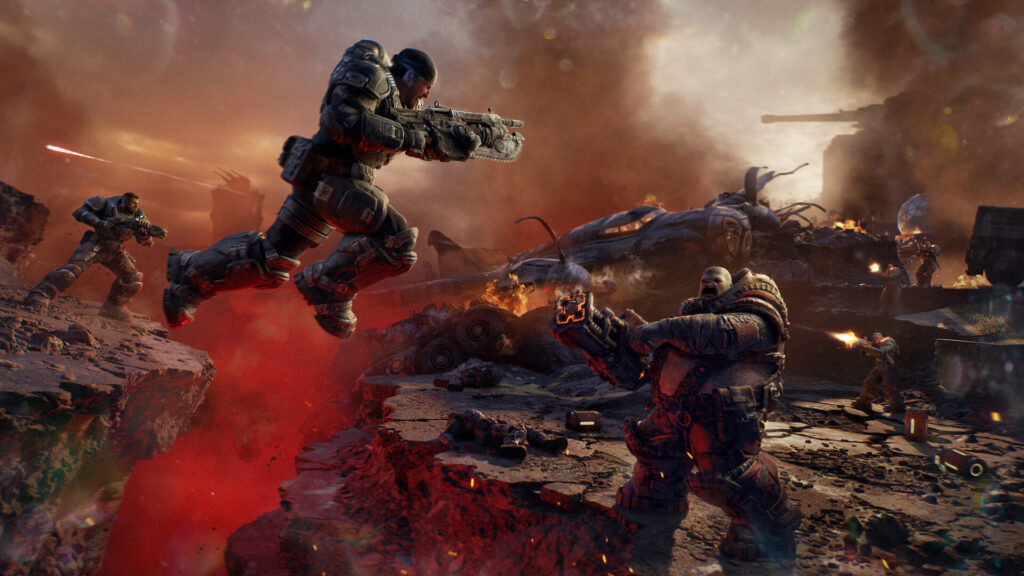
E-Day’s new jump and slide moves feel best at 60fps, which is why Performance mode is our pick on Xbox Series X.
Our Quick Verdict: The Best Gears of War E-Day Settings
For most PC players, the best experience comes from the High or Ultra preset with your vendor’s upscaler on Quality or Balanced, Reflections and Ray Tracing Geometry as high as your card allows, Motion Blur, Chromatic Aberration and Film Grain off, and Ludicrous left alone. Turn on frame generation only once you already hit 60fps, and enable RTX Mega Geometry only if you have a 12GB GeForce card and performance to spare. On Xbox Series X, Performance mode is the way to go, while Series S owners with a 120Hz TV should choose Balanced. The Coalition is still patching the game, and NVIDIA’s shader delivery support is still on the way, so some of these recommendations may shift with future updates. Still deciding whether E-Day is worth it? Read our Gears of War: E-Day review, or catch up on the story so far with our Gears of War lore explained guide.
Keep the adventure going! Check out more Gaming Guides on Gamersuniverse.
Picture Source: Xbox Game Studios / The Coalition