
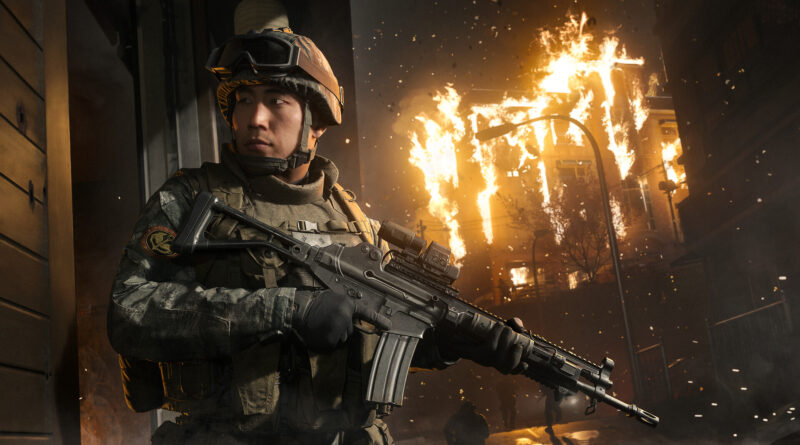
The Best Modern Warfare 4 Settings for PC, PS5, Xbox and Controller, Plus the Best FOV
Call of Duty: Modern Warfare 4 launches on October 23, and with Campaign Early Access already live for pre-order players, plenty of you are staring at a settings menu that Activision says holds more than 800 customization options on PC. Most of the defaults are sensible, but a handful of them cost you frames, clarity or aim consistency. This guide covers the best Modern Warfare 4 settings for PC, PS5 and Xbox Series X|S, the best controller settings and the best FOV, so you can get into Multiplayer and DMZ with a setup that actually works for you. It reflects the Early Access build, so expect a few values to shift with the launch patch.
Modern Warfare 4 PC Requirements: Check These First
Before you tune a single slider, make sure your PC meets the basics. Modern Warfare 4 requires TPM 2.0 and Secure Boot to be enabled, an SSD with 115GB of free space and a processor with the AVX instruction set. Activision’s official targets look like this:
- Minimum (Windows 10 64-bit): Ryzen 5 1400 or Core i5-6600, 8GB RAM, Radeon RX 470, GeForce GTX 970 or GTX 1060, or Intel Arc A580 with 3GB of VRAM.
- Recommended (Windows 11 64-bit, 90fps in Multiplayer on High): Ryzen 5 3600 or Core i7-8700K, 16GB RAM, Radeon RX 6600 XT, GeForce RTX 3060 Ti or Intel Arc B580 with 8GB of VRAM.
- Ray Tracing Ultra specs (Windows 11 64-bit, High quality ray tracing at 4K upscaled): Ryzen 7 3700X or Core i7-10700K, 32GB RAM, Radeon RX 9070 XT or GeForce RTX 5070 Ti with 16GB of VRAM.
Update your graphics driver too. Activision recommends AMD 26.7.1, NVIDIA 616.56 and Intel 32.0.101.8974 or newer, and Intel Arc cards need Resizable BAR switched on. If you want faster first launches, install the Xbox PC app even if you play on Steam or Battle.net, since that’s what lets Advanced Shader Delivery download precompiled shaders on supported setups.
Best Modern Warfare 4 PC Display Settings
The Display tab is where you win back input latency, so start here:
- Display Mode: Fullscreen Exclusive, which gives you full control over refresh rate and resolution. Fullscreen Borderless is fine if you alt-tab a lot.
- Screen Refresh Rate: the highest value your monitor supports.
- Display Resolution: your monitor’s native resolution. Gain frames through an upscaler instead of lowering the resolution.
- Background Shader Preloading: On. It compiles shaders in the background after updates, and letting it finish before your first match cuts down on stutter.
- NVIDIA Reflex Low Latency: On, or On + Boost if power draw doesn’t matter to you.
- V-Sync (Gameplay): Off, it adds input lag. On a G-Sync or FreeSync display you don’t need it.
- Custom Frame Rate Limit: set a cap a few frames below your monitor’s refresh rate, or at a level your PC can actually hold in busy fights. A stable cap feels better than a frame rate that jumps around.
- Eco Mode Preset: Efficiency is the safe choice and helps keep power draw and heat down, especially on laptops and handheld PCs.
- HDR: Modern Warfare 4 supports HDR10+, which adjusts contrast in real time based on your screen’s brightness settings. If you have a proper HDR monitor, leave HDR on and calibrate it carefully, otherwise stay in SDR.
Beenox and Infinity Ward are targeting 90fps at Recommended Specs, but the right settings decide how stable those frames really are.
Best Modern Warfare 4 PC Graphics Settings for High FPS
Modern Warfare 4 sets a graphics preset automatically based on your hardware, which is a good starting point. From there, switch to Custom and adjust the options that matter most:
- Resolution Scaling Technique: the default is Filmic SMAA T2X, which only handles anti-aliasing. For more frames, pick NVIDIA DLSS 4.5 on GeForce RTX cards, AMD FSR Redstone on Radeon cards or Intel XeSS 3 on Arc cards. Quality mode is the sweet spot at 1080p and 1440p, Balanced or Performance works well at 4K.
- Sharpness: new in Modern Warfare 4, this slider works with every upscaler. Around 50 is a good place to start, raise it slightly if the image looks soft after upscaling.
- Frame Generation: Off for Multiplayer, since it adds latency. In the Campaign it’s a nice way to smooth things out, as long as you already reach around 60fps without it.
- Ray Tracing: Off for competitive play. Ray tracing works in the Campaign, Multiplayer and DMZ, but Activision’s own ray tracing specs call for 16GB of VRAM and 32GB of RAM. Save it for the Campaign if you have the hardware.
- World Motion Blur and Weapon Motion Blur: Off.
- World Depth of Field: Off. Depth of field is now split into two settings, so you can keep Weapon Depth of Field on for that realistic aiming look while the world stays sharp.
- Film Grain: 0, it only adds noise.
- Shadows, particles and screen space effects: if you still need frames, lower Shadow Quality, Particle Resolution, Screen Space Reflections and Occlusion and Screen Space Lighting first. Keep textures as high as your VRAM allows, since they barely cost frames and help you spot details.
Once you’re done, run the built-in Benchmark Tool. It plays a simulated Multiplayer sequence, shows your average FPS, CPU and GPU load, ping and input latency, and then breaks down your stats zone by zone with setting suggestions, which makes it the quickest way to check whether your changes actually helped.
The Best FOV in Modern Warfare 4
Field of View decides how much of the battlefield you see, and it’s one of the most important settings on every platform. A higher FOV gives you better awareness, but it also makes enemies at range look smaller. Here’s how we’d set it up:
- Field of View: for Multiplayer, we recommend starting between 105 and 110 and adjusting from there. On PC, players with high-end hardware can go even wider, but keep in mind that a higher FOV costs some performance. On console, the slider goes up to 120, which tends to feel too zoomed out for most players.
- Enhanced FOV (PC only): this new option uses physically accurate lens effects to widen the view near the edges of your screen without changing the center. It’s perfect if you like a smaller FOV for aiming but still want more peripheral awareness. Try it at your usual FOV and turn it off if the edge distortion bothers you.
- ADS Field of View: Affected. It keeps your aiming view tied to your FOV setting, so you keep more of your wide view when aiming down sights.
- 3rd Person Field of View and Vehicle Field of View: we recommend 90 and Default unless you play a lot of third-person playlists.
- 1st Person Camera Movement: if you feel motion sick, try lowering this to around 50 percent and drop your FOV closer to 100.
Best Modern Warfare 4 Settings on PS5 and Xbox Series X|S
Console players have fewer graphics options, but the ones that are there matter a lot. The single most important step is unlocking 120Hz:
- PS5: Modern Warfare 4 supports 120Hz High Frame Rate and VRR. Enable 120Hz output and VRR in your PS5’s system settings, then turn on the 120Hz refresh rate option in the game.
- PS5 Pro: you get enhanced PSSR upscaling and higher graphics quality in both the 120Hz and 60Hz modes, plus an unlocked frame rate when VRR and 120Hz are enabled. With a VRR TV, that’s the best way to play on console.
- Xbox Series X: according to Activision, the game runs at 60fps at 4K or 120fps at 1440p. Set your console to 120Hz in the Xbox video settings and use a 120Hz-capable HDMI port on your TV.
- Xbox Series S: Activision hasn’t shared separate resolution targets, but the same rule applies: if your TV supports 120Hz, turn it on.
In the game’s graphics menu, turn off World Motion Blur, Weapon Motion Blur, World Depth of Field and Film Grain. If your console offers FidelityFX CAS, switch it on with a strength between 50 and 80 for a noticeably sharper image. Low Energy Mode on PS5 helps reduce power consumption, so leave it off if you want the best possible performance. Finally, put your TV in Game Mode, which matters just as much as anything in the game’s menu.
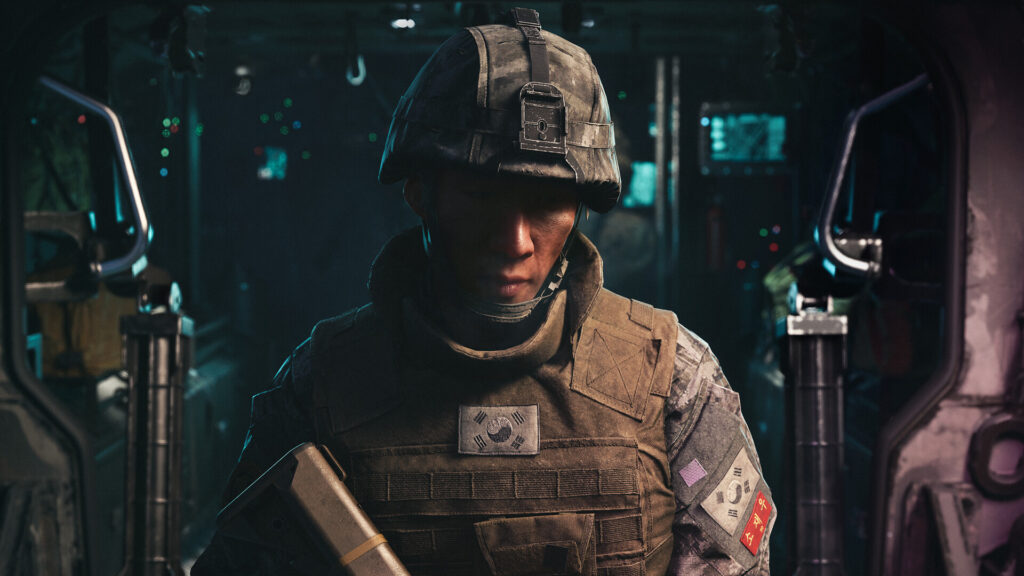
Dark interiors like this are where proper HDR calibration and a sharper image pay off on console.
Best Modern Warfare 4 Controller Settings
Controller settings are personal, but these values make a strong baseline for PS5, Xbox and PC controller players:
- Button Layout: Tactical, which moves crouch, slide and dive to the stick so you can keep aiming while you move. Back-paddle controller users can stay on Default and map jump and slide to the paddles.
- Horizontal and Vertical Stick Sensitivity: start around 1.5 to 1.8 and raise it in small steps once your tracking feels consistent.
- ADS Sensitivity Multiplier: around 0.85 to 0.95 for more control when aiming down sights.
- Aim Response Curve Type: Dynamic is popular for quick turns with fine control near the center, while Standard is the more predictable choice. Try both and stick with one.
- Stick Deadzones: run the in-game deadzone test and set each minimum just above the value it shows, so your stick doesn’t drift. Keep the maximums high, around 99, unless you want to reach full sprint speed with a shorter stick throw.
- Trigger Deadzones: as low as your controller allows for faster shots.
- Target Aim Assist: On.
- Controller Vibration: Off for Multiplayer, in our experience rumble only distracts from precise aiming.
- Trigger Effect (PS5): the DualSense adaptive triggers add a lot of weight to every weapon, which is great in the Campaign. In Multiplayer, we’d turn them off, since the extra resistance can get in the way of quick, precise shots.
Change one setting at a time and test it in a private match or the firing range. If you tweak sensitivity, deadzones and the response curve all at once, you’ll never know which change actually helped.
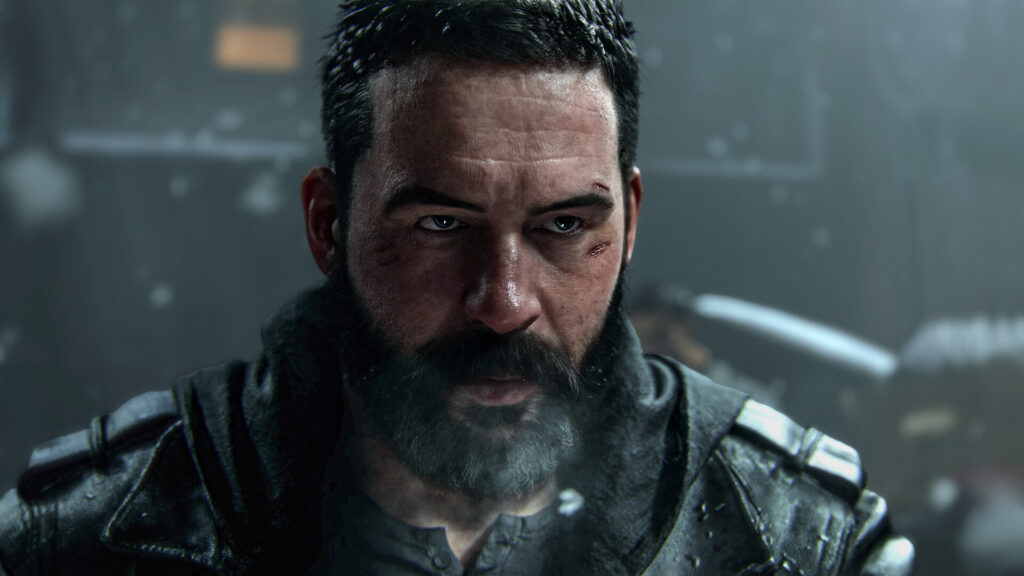
The right controller and FOV setup makes close-quarters fights like those in the Campaign much easier to read.
Best Modern Warfare 4 Audio Settings
Hearing footsteps is half the battle, so finish with a quick audio pass. Choose the Audio Mix that matches your setup, Headphones for a headset and Home Theater for speakers or a soundbar. Keep Master and Effects volume at 100, drop Gameplay Music Volume to around 25 or lower, and keep Dialogue Volume high enough that you don’t miss callouts. Streamers and content creators should also turn on Mute Licensed Music.
Our Quick Verdict: The Best Modern Warfare 4 Settings
On PC, play in Fullscreen Exclusive at native resolution, keep Reflex on and V-Sync off, cap your frame rate, use DLSS, FSR or XeSS on Quality, and switch off ray tracing, frame generation, motion blur, world depth of field and film grain for Multiplayer. On PS5 and Xbox, unlocking 120Hz is the biggest upgrade, with PS5 Pro owners getting the smoothest experience thanks to the unlocked frame rate with VRR. For FOV, start at 105 to 110 and PC players should give Enhanced FOV a try. On controller, a low sensitivity, tight deadzones, Tactical layout and no vibration give you a clean baseline to build on. Infinity Ward will keep patching the game after launch, so some of these settings may change. Still deciding whether the Campaign is worth it? Read our roundup of the Modern Warfare 4 campaign reviews, or catch up on the story so far with our Modern Warfare story recap.
Keep the adventure going! Check out more Gaming Guides on Gamersuniverse.
Picture Source: Activision, Activision / Infinity Ward (Steam)