
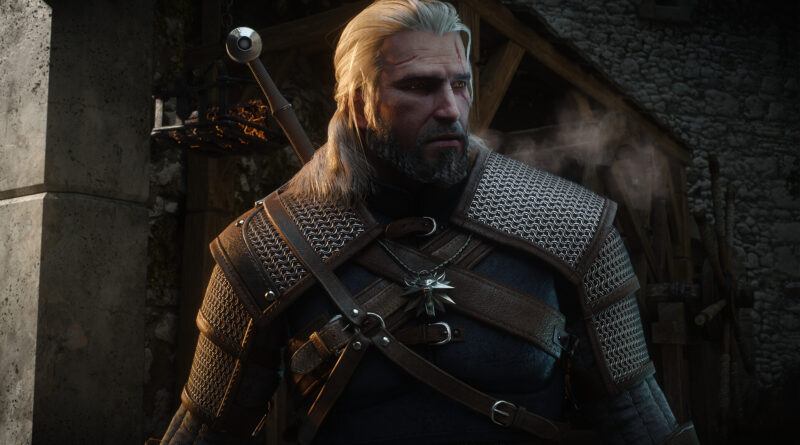
How to Roll Back The Witcher 3 Remastered to the Old Version on Steam and GOG
The Witcher 3: Wild Hunt Remastered is a free upgrade, but not everyone is happy that it replaced the version they were playing. Maybe your favorite mods stopped working, maybe your PC is still on Windows 10, or maybe you simply prefer the old look and skill system. The good news: on PC you can roll back The Witcher 3 Remastered to the old version in a few clicks. This guide explains how to go back to the Classic (1.32) or Next-Gen (4.04) build on Steam and GOG, why it doesn’t work on Epic or consoles, and how to protect your saves before you switch. It reflects the game as of Patch 5.01 (October 8, 2026).
Why Players Want to Roll Back The Witcher 3 Remastered
The Remastered update launched on September 29, 2026 for PC, PS5, Xbox Series X|S and Nintendo Switch 2, and it automatically replaced the previous build for everyone who already owned the game. It is a big overhaul, which is exactly why some players want the old version back:
- New PC requirements: Steam now lists 64-bit Windows 11 as the operating system for both the minimum and recommended specs, and the game runs on native DirectX 12. Back in May 2026, CD Projekt Red said it no longer tests or supports The Witcher 3 on Windows 10 going forward. The studio stressed this doesn’t mean the game won’t run on Windows 10, only that it can’t guarantee it will.
- Mods: the remaster changes a lot under the hood, so some older mods may no longer work on version 5.x. Nexus Mods has added a “Remastered Compatible” tag to help players sort this out.
- Gameplay changes: the skill system was rebuilt into a skill tree with three ranks per skill and prerequisites, and some skills were renamed and rebalanced. If you liked your old build, that alone can be a reason to go back.
- Performance and visuals: CD Projekt Red is still patching the remaster, and older hardware may simply run the previous build better.
Before you roll back, it’s worth trying our guide to the best Witcher 3 Remastered settings, because a few tweaks often fix the most common performance complaints.
Which Old Versions Can You Go Back To?
There are two older builds you can return to on PC:
- Classic (Patch 1.32): the original version of the game from 2018, before the free next-gen update. This is the branch CD Projekt Red officially documents in its support article. A launch bug briefly broke it after the remaster went live, but Hotfix 5.00c on October 1 fixed the issue where the Classic (1.32) version couldn’t be launched.
- Next-Gen (Patch 4.04): the 2022 next-gen version with DirectX 12, ray tracing and the free DLC inspired by the Netflix series. It isn’t listed in CD Projekt Red’s support article, but Nexus Mods’ community manager said the studio confirmed Classic, Next-Gen and Remastered would all remain available on Steam and GOG, and players can select it from the same menu as Classic.
If you mainly want the old skill system or your mods back but still like modern visuals, Next-Gen 4.04 is the better choice. If you want the game exactly as it was in 2018, pick Classic 1.32.
Step 1: Back Up Your Saves First
Do this before you change versions. CD Projekt Red confirms that older saves work in the Remastered version (your skill points get reset because of the new skill tree), but it has not confirmed that saves created in Remastered will load in 4.04 or 1.32. To stay safe:
- Copy the entire save folder to a safe place. On PC it is located at Documents\The Witcher 3\gamesaves.
- After rolling back, load a save that was made in that older version if you still have one, rather than your most recent Remastered save.
- Disable your mods before switching, launch the old build once without them, and then add mods back in small groups using the file version made for that build.
Back up your gamesaves folder before switching versions, so no journey through Skellige gets lost along the way.
How to Roll Back The Witcher 3 Remastered on Steam
- Open your Steam Library.
- Right-click The Witcher 3: Wild Hunt and select Properties.
- Open the Game Versions & Betas tab (CD Projekt Red’s support article still calls it “Betas”, which is how older Steam clients label it).
- Select Classic for Patch 1.32, or the Next-Gen branch for Patch 4.04.
- Steam downloads the older build automatically. Once it’s done, check the version number in the main menu.
To return to the Remastered version later, follow the same steps and select None (the default public version) instead of a branch.
How to Roll Back The Witcher 3 Remastered on GOG
- Open GOG Galaxy and go to your Installed section.
- Select The Witcher 3: Wild Hunt, then choose Manage Installation and Configure.
- Set Beta Channels to Classic (or to the Next-Gen channel for 4.04).
- Disable automatic updates, choose your preferred version and click OK.
To go back to Remastered, set Beta Channels to Disabled and turn automatic updates back on.
Can You Roll Back on Epic Games Store, PS5, Xbox or Switch 2?
No. CD Projekt Red states that reverting isn’t possible on the Epic Games Store, because the platform only provides the latest version of the game. Consoles don’t offer version switching either, so on PS5, Xbox Series X|S and Switch 2 you’re on the Remastered version. If you’re on one of these platforms, the best you can do is adjust the settings and wait for further patches.
On Epic and consoles there is no way back, so the Remastered version is the only road ahead.
What You Lose When You Go Back to the Old Version
Rolling back means giving up everything the Remastered update added, including:
- Path tracing, ray-traced local shadows and ray-traced HairWorks
- Support for NVIDIA DLSS 4.5, AMD FSR 4 (on Radeon RX 7000 cards and newer) and Intel XeSS 2
- The new skill tree with three ranks per skill
- Reforge, which lets master craftsmen Yoana and Hattori change your gear’s appearance without touching its stats
- The Bard’s Ballad accessibility preset, the expanded Photo Mode and the new timelapse meditation
- The in-game Cross Platform Mod Support powered by mod.io
Keep in mind that CD Projekt Red only fully supports the latest version, so if you run into bugs on an older build, the studio’s advice is to update first.
Our Verdict: Should You Roll Back The Witcher 3 Remastered?
For most players, staying on Remastered is the better choice, especially as CD Projekt Red keeps improving it with patches like 5.01. But if you’re on Windows 10 and running into problems, if your mod setup broke, or if you just miss the old skill system, rolling back on Steam or GOG takes only a few clicks and is fully reversible. Back up your saves, pick Classic 1.32 or Next-Gen 4.04, and you can always switch back to Remastered later. Want to know how the free upgrade came together? Catch up on how CD Projekt Red reworked the remaster in our earlier coverage.
Keep the adventure going! Check out more Gaming Guides on Gamersuniverse.
Picture Source: CD PROJEKT RED




Pingback: Witcher 3 Remastered Console Mods: How to Install Mods on PS5, Xbox and Switch 2 - Gamersuniverse